
Settings Overview
2026
Pairing switches with status in macOS Settings
Year
2026
Role
Self-initiated concept
Timeframe
2 months
Team
1 DES
Tools
HTML, CSS, JavaScript, SF Symbols
System Settings tells you what you can change. It almost never tells you what is happening. Settings Overview keeps every pane Apple ships and adds the missing half.
A control panel with no gauges
Open Battery in System Settings and you get switches. Is something draining it? Is the health slipping? The answers sit one sheet deeper, if they exist at all. Wi‑Fi lists networks but not how good your connection is. Network shows a status dot, not the dozens of servers your Mac is talking to. Privacy & Security lists permissions, not which app turned on your camera at 2 PM.
People who want those answers install something else. Little Snitch for connections, iStat Menus for the system, coconutBattery or AlDente for the battery, WhatPulse for the keyboard. Each one rebuilds a slice of data the operating system already has.
The brief I set myself
- Keep every pane exactly as Apple ships it. Nothing to relearn.
- Make the window answer “what is going on with my Mac” before anything is clicked.
- Give each setting the data a best-in-class tool for that setting would show.
- Let people choose what they see, the way they already choose widgets on the desktop.
Assumptions
This is set on macOS Tahoe 26. It assumes the system can read data it already collects, such as battery history, network connections and sensor use, and show it locally. All data in the images is fictional sample data for the Belcher family. This is a personal exploration with no affiliation to Apple or to any app named here.
The labels went first
The Mac has rearranged its settings many times since 1984. Two changes made them harder to find.
When Mac OS X introduced System Preferences in 2001, its grid of panes came with names. Personal, Hardware, Internet & Network and System sat above their rows. In 2013, OS X Mavericks kept the rows and dropped the names. By macOS Monterey the grid held around thirty panes, every icon in its own colour, grouped by shaded bands that nothing explained. You found Displays by remembering where it sat.
In 2022, macOS Ventura replaced the grid with System Settings, a sidebar modelled on iPad. Groups became gaps between rows, and the icons kept their mixed colours, so colour still said nothing about where a pane belonged. Finding a setting often means searching for it.
-
Groups have no names
They had them in 2001. A gap between rows is a group only if you already know why the rows belong together.
-
Colour carries no meaning
Blue, red, grey and purple mix inside every group, so the eye cannot use colour to land in the right area.
-
Nothing can be read at a glance
Every pane shows controls first. Status, history and anything unusual sit a click or a sheet away.
-
Data lives in other apps
The deepest view of your own network, battery or typing comes from software you buy separately.
What they share
Settings is built as a list of switches. The Mac treats it as somewhere you go to change something, not somewhere you go to understand something.
Back to what Settings is for
A setting is a decision about something happening on your Mac. You should see the something.
-
Leave Apple’s panes alone
People have muscle memory for them. Every pane renders as it does in macOS 26, audited against Apple’s own guide.
-
Name every group, colour every group
The category is a word you can read and a colour you can recognize from across the room.
-
Show before you ask
Every pane opens with data beside it, so most questions end before a click.
-
Depth on request
A summary on the surface, the full sub-page one click away, never in place of the pane.
-
People choose what they see
Widgets work like desktop widgets. Add them, remove them, and the layout stays balanced.
Four bets, and the research behind them
Four of those principles are bets on how people find and read things. Each one leans on published research and names the result that would prove it wrong.
-
Coherent, named groups will be faster to scan
Brumby and Zhuang had 36 people search menus for known words. Putting related items together had the biggest effect, 3.34 seconds against 4.23 for a jumbled menu. Borders around the groups helped on top of that, but only when there were fewer, larger groups. Around items that did not belong together, borders made search slower than no borders at all, 4.51 seconds against 3.95. The paper’s own example of a weak group is the last block of the iPad’s Settings sidebar, the design macOS took on in 2022. The General to Wallpaper block in today’s sidebar is the same kind of catch-all.
Hornof tested the names. With a heading on each group, 16 people read the headings first and then searched only the group they needed. Each position further into the layout added 39 milliseconds, against 102 without headings. They were told the group’s name in advance, which someone new to Settings would not be.
It fails if people are no faster with the named categories than with today’s groups in a tree test.
Brumby and Zhuang, “Visual grouping in menu interfaces,” CHI 2015. doi.org/10.1145/2702123.2702177
Hornof, “Visual search and mouse-pointing in labeled versus unlabeled two-dimensional visual hierarchies,” ACM Transactions on Computer-Human Interaction 8(3), 2001. doi.org/10.1145/502907.502908
-
One colour per group will make the groups stronger
Nothelfer, Gleicher and Franconeri flashed dense displays of shapes for a fraction of a second and asked people to pick out one set. When the set differed by colour and shape together, accuracy ran from 84.5% to 92.3%, against about 71% for whichever single cue suited each person best. A later experiment found that grouping itself got stronger with two cues. In Settings Overview, position and a heading already mark each group, and colour repeats them. The displays were abstract shapes, not menus. And most of the extra strength came from making it harder to look across groups, not easier to look within one. That suits a sidebar, where you look for one pane, but it could slow comparisons between categories.
Two older papers set the conditions. Wolfe and Horowitz count colour among the few attributes that undoubtedly guide attention, but the guidance is coarse, closer to “red” than to a precise shade, so seven category colours have to sit far apart. Christ’s review of 42 studies found that colour repeating another cue cut search time when people knew the target’s colour, and added at least 23% when they did not. Category colours pay off only once people have learned them.
It fails if people land in the right category no more often with colour than without it.
Nothelfer, Gleicher and Franconeri, “Redundant encoding strengthens segmentation and grouping in visual displays of data,” Journal of Experimental Psychology, Human Perception and Performance 43(9), 2017. doi.org/10.1037/xhp0000314
Wolfe and Horowitz, “What attributes guide the deployment of visual attention and how do they do it?” Nature Reviews Neuroscience 5(6), 2004. doi.org/10.1038/nrn1411
Christ, “Review and analysis of color coding research for visual displays,” Human Factors 17(6), 1975. doi.org/10.1177/001872087501700602
-
Leaving Apple’s panes in place keeps what people already know
Scarr, Cockburn, Gutwin and Malacria asked 15 people to find familiar icons from the Windows 7 control panel as the window changed shape. When every icon kept its relative place, a selection took 2.27 seconds on average. When icons reflowed to fill the window, it took 3.16 seconds, and a new window shape added up to 1.65 seconds, against under 0.3 for the stable layout. That is why every pane renders as Apple ships it. The same study names this design’s cost. The sidebar does change, so people who know today’s order relearn it once. After that the order is fixed, and widgets move only when you edit them. The authors list letting people place items themselves as one way spatial memory survives changing content.
It fails if people who know today’s Settings are still slower in the new sidebar after a week.
Scarr, Cockburn, Gutwin and Malacria, “Testing the robustness and performance of spatially consistent interfaces,” CHI 2013. doi.org/10.1145/2470654.2466430
-
A summary beside the pane will answer what a sub-page answers today
This is the weakest of the four. Cockburn, Karlson and Bederson reviewed the research on showing an overview next to the detail. Several studies found people preferred it, and for some tasks, such as understanding a document, nothing beat it. It was not always faster. Holding two views in mind has a cost, and one study reported that “switching between the detail and the overview window required mental effort and time.” The review closes with two rules. Let people hide the overview, which the collapse button does. And show changes from the detail in the overview at once, so a switch flipped in a pane appears in its widget straight away. The prototype does not do that yet.
It fails if people cannot say what a setting is doing after five seconds with its widget column.
Cockburn, Karlson and Bederson, “A review of overview+detail, zooming, and focus+context interfaces,” ACM Computing Surveys 41(1), 2008. doi.org/10.1145/1456650.1456652
From a list to a map
Nothing inside Apple’s panes moves. Everything around them does.
The sidebar keeps every pane Apple ships. The rows regroup under seven named categories, from Connectivity to Accessories. Each category takes one colour, so an icon tells you where you are before you read its name. Then the window widens, and the column beside the pane fills with what that setting is doing right now. Run the steps backwards and you are back in today’s Settings, which is what the collapse button does.
Once groups have names, each name can lead somewhere. A category title opens a dashboard for the whole group, one page across every pane under it. Connectivity maps where the Mac is connecting and what it sent today. Display & Power puts battery, screens and wallpaper side by side. Security & Users shows who has an account and how the Mac was unlocked today.
Three columns, one window
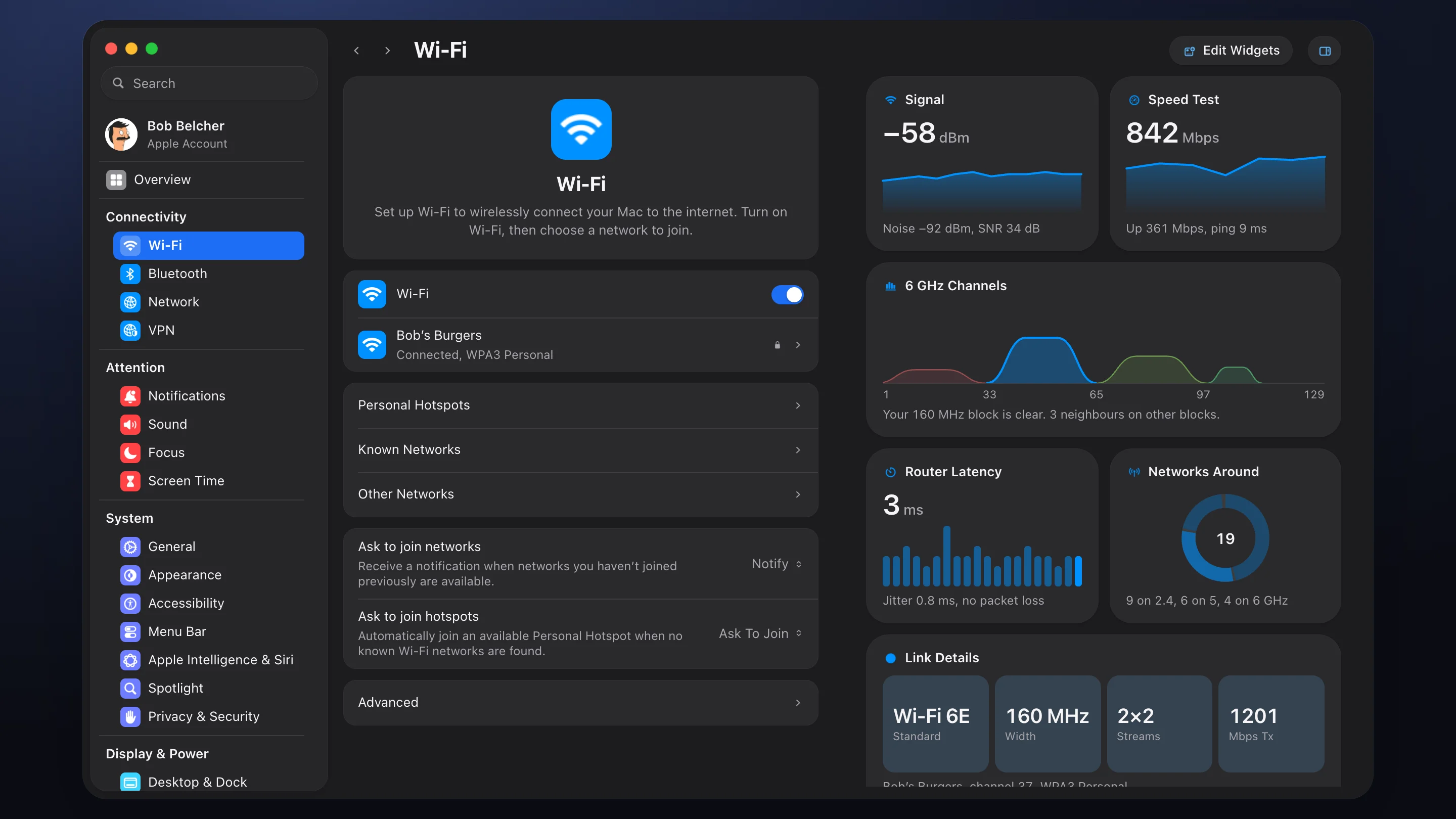
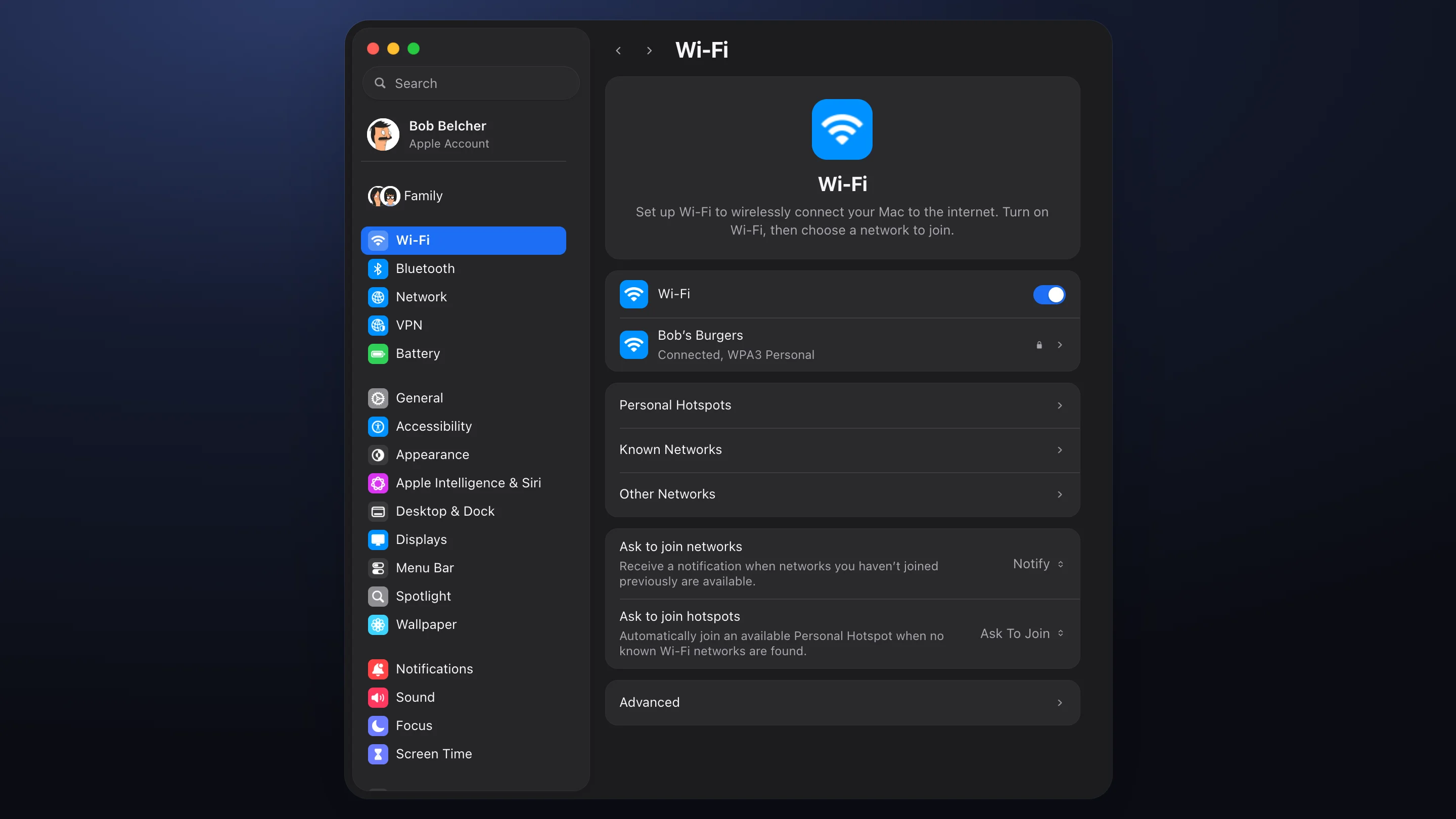
The window widens to three columns. The sidebar on the left, Apple’s pane in the middle at its original width, and a widget column of the same width on the right. The middle column never changes. What changes is everything around it.
A sidebar that names its groups
The sidebar is one flat list. Each category, Connectivity, Attention, System, Display & Power, Security & Users, Accounts and Accessories, gets a title in the same style as a widget title, and every pane under it shares one colour. That colour follows you into the pane. Every icon and chart in the Wi‑Fi pane is Connectivity blue. Category titles open the group dashboards shown above.
An Overview to start from
Overview sits at the top of the sidebar and opens first. It gathers the most useful widget from each area into one dashboard, ordered the way the sidebar is, so blues sit with blues and reds with reds. Widgets that belong together stack, like Smart Stacks on iPhone.
Sub-pages open beside the pane, not over it
When a row in Apple’s pane leads deeper, the sub-page opens in the third column and the row stays selected. You can read About while General stays in view, and the pane never jumps away from you. With nothing open, the third column belongs to widgets.
One click back to today
Not everyone wants a dashboard beside every setting. A button at the top right hides the widget column. The window shrinks to today’s width, and sub-pages open in place the way they do in macOS 26, with the toolbar title and back button following along. The named, coloured sidebar stays either way.
Ten widgets per setting
Every setting gets the depth of the best tool built for it.
For each of the 32 panes I asked one question. Which app do people install to understand this setting, and what does it show them? Then I designed ten widgets at that depth. Eight show by default. Two wait in a gallery.
-
Network
Takes after Little Snitch. A live map of where your Mac is connecting and how much data goes to each region.
-
Wi‑Fi
Takes after WiFi Explorer. A channel graph that shows which neighbours share your band, with signal, noise and link details.
-
Battery
Takes after coconutBattery and AlDente. Level over 24 hours with charging marked, health history, cycles and energy use by app.
-
Screen Time and Focus
Take after RescueTime and Structured. Pickups by hour, a 24-hour schedule ring and a family comparison.
-
Keyboard
Takes after WhatPulse. A heat map of the keys you press most, typing speed and favourite shortcuts.
-
Passwords
Takes after Watchtower in 1Password. A security score and a short list of what to fix first.
Built to Apple’s widget rules
Widgets follow Apple’s guidelines for widgets. Small is one column, medium is two columns at the same height, and large is two by two. Each small widget carries one idea, a value, a chart and one line of context. Large widgets add a second layer of detail instead of more space. Text never drops below 11 points, and every widget opens the sub-page it summarizes.
Heights are fixed, so the grid always tiles. Small widgets come in pairs. When a single one is added and leaves a gap, the gap becomes a dashed Add Widget tile.
Edit Widgets
An Edit Widgets button sits at the top right of every pane, beside the button that hides the column. It opens a sheet in the style of the macOS widget gallery. Each widget shows a live preview, one sentence on why it helps and its size. Adding or removing updates the column behind the sheet at once, and each widget in the column shows a remove button while the sheet is open. Restore Defaults puts the original eight back.
Faithful where it counts
A concept that redraws Apple’s panes asks people to relearn them. This one doesn’t.
I rebuilt every pane from Apple’s Mac User Guide for macOS Tahoe 26, then checked each one against it. Section titles, option names, the order of options and the type of each control match the guide wherever it documents them. Where the guide is silent, the pane stays close to what macOS ships, and I noted it as unverified rather than guessing.
Counts from the prototype. Settings are the options Apple’s guide documents across all panes and sub-pages, indexed for search. 191 pages were checked against the guide.
What success looks like
A concept without targets is a mood board. These are the measures I would hold it to.
-
North star
Questions answered without opening anything. Measured as status tasks completed from the widget column alone, such as “Is my firewall on?” or “What drained my battery today?”
-
Findability
Time to reach a named setting from the sidebar, compared with today’s list, and how often people fall back to search.
-
Choice
Share of people who add or remove at least one widget in their first week, and which widgets survive a month.
-
Guardrails
Window open time stays flat, since a dashboard that holds people longer has failed. Energy use from data collection stays under a set budget.
What I would test first
-
A tree test of the named categories against today’s unnamed groups, with the same twenty tasks, then a first-click test of the sidebar with and without category colours.
-
A five-second test on three widget columns. Can people say what each setting is doing?
-
A diary study with people who already run Little Snitch, iStat Menus or coconutBattery. Would the widgets let them uninstall anything?
Where this could fail
-
Too much on screen
A column of charts beside every pane could feel like a cockpit. Eight is the default, not the floor, and an empty column is a valid choice.
-
Privacy
Camera, microphone and location history are sensitive even on your own Mac. Every widget reads local data only, and the privacy widgets follow the same permissions as the panes.
-
Energy cost
Collecting history costs battery. Widgets show data the system already keeps, sampled on the system’s schedule, not on their own.
-
Colour as the only cue
Category colours help, but they cannot be the only signal. Every category also has a name, and charts never rely on colour alone.
-
The ecosystem
Apple building in what third-party apps sell would hurt developers. The widgets aim at the summary most people need, not the depth power users pay for.
Play it yourself
Every pane, widget and gallery in this study is clickable.
The prototype runs in the browser with the Belcher family’s sample data. Start from Overview, open a category, then try Edit Widgets and the button that hides the column.
FAQ
Why not redesign the panes themselves?
Because people have learned them. The friction is not in how a pane works once you are in it, it is in finding it and in what it does not tell you. Keeping the panes untouched means the concept adds without taking anything away, and anyone who opens Settings today would know their way around.
Wouldn’t better search solve findability?
Search helps when you know the name of what you want. It does nothing for questions like what is draining the battery, and it does not teach you the shape of Settings. Named, coloured groups and an Overview let people browse and recognize, which is how most people find things on a screen.
Why put widgets in a separate column instead of inside each pane?
Mixing data into a list of switches makes both harder to read, and it would mean redrawing Apple’s panes. A separate column keeps controls and data apart, lets each be scanned on its own, and gives sub-pages a place to open without replacing the pane.
Why ten widgets, and why only eight shown?
Ten was enough to cover what the best tool for each setting shows without repeating itself. Eight fit the column without crowding it. The last two are there to prove the gallery is worth opening, and they are the ones a smaller group of people would want.
What would you do differently?
I would run the tree test before designing the sidebar, not after. The category names come from Apple’s own grouping, and I did not validate them with people. If they do not match how people think about their Mac, colour coding only makes the wrong groups easier to see.